
CEO & Co-founder of Visivo
Customizable Analytics with Visivo's Code-First Approach
Learn how Visivo's BI-as-code philosophy enables teams to build highly customizable analytics dashboards that adapt to any use case through YAML configuration.

Every team has its own data sources, its own chart requirements and its own workflow, and generic BI tools rarely fit any of them. Forrester research found that between 60% and 73% of enterprise data goes unused for analytics, often because the tool forces teams into templates that do not match what they need. Gartner put the consequence plainly: "Only 20% of analytics insights will deliver business outcomes through 2022."
Visivo takes a code-first approach. Every part of a project lives in YAML under version control, so a team shapes the analytics to the problem instead of the other way around. Here is how that works in practice, from project configuration to deployment, on Visivo's BI-as-code platform.
The power of configuration-driven analytics
Traditional BI tools keep configuration behind a GUI, which makes customization slow and version control impossible. Visivo puts every part of your analytics in readable YAML files. A dashboard stops being a black box and becomes a system you can read, change and review.
We compare the two approaches in YAML vs GUI BI Configuration and show what the code-first side unlocks in Developer-First BI Workflows.
When analytics is code, customization is the default. Need a specific chart type? Configure it. Want your own colors? Define them. Need a complex transformation? Write the SQL. Every part of the pipeline is code you can test and reproduce.
Building custom dashboards with Visivo
Visivo exposes over 40 chart types through Plotly.js, each configurable in YAML, so you are not limited to a fixed set of templates. The rest of this section builds a sales analytics dashboard one piece at a time.
Starting with project configuration
A project starts with a project file that sets defaults for everything in it:
# project.visivo.yml
name: Custom Sales Analytics

defaults:
  source_name: primary_warehouse # defined in the sources block below

theme:
  # Global customization for all charts
  font_family: "Inter, system-ui, sans-serif"
  font_size: 14
  plotly_layout:
    hovermode: x unified
    hoverlabel:
      bgcolor: "#1a1a1a"
      font:
        color: "#ffffff"
The theme sets project-wide defaults. A chart's own layout always wins over the theme, so individual charts can still differ where they need to.
Connecting to your data sources
A project can connect to several sources at once. See Modern Data Stack Alignment for how Visivo fits alongside the rest of your stack:
name: source_example

sources:
  - name: primary_warehouse
    type: snowflake
    account: ${env.SNOWFLAKE_ACCOUNT}
    database: ANALYTICS
    warehouse: COMPUTE_WH
    db_schema: SALES
    username: ${env.SNOWFLAKE_USER}
    password: ${env.SNOWFLAKE_PASSWORD}

  - name: postgres_operational
    type: postgresql
    host: ${env.PG_HOST}
    database: operations
    port: 5432
    username: ${env.PG_USER}
    password: ${env.PG_PASSWORD}

  - name: local_sqlite
    type: sqlite
    database: ./data/reference_data.db
${env.VAR_NAME} keeps credentials out of the file, so the configuration can live in Git. Set the variables in your shell or in a .env file at the project root, and keep that file out of Git. The same mechanism carries into CI, which we cover in CI/CD Analytics Implementation.
Creating custom data models
A model is a SQL query. Write the transformation you need:
name: model_example

models:
  - name: sales_performance
    sql: |
      WITH monthly_metrics AS (
        SELECT
          DATE_TRUNC('month', order_date) as month,
          product_category,
          sales_region,
          SUM(order_value) as revenue,
          COUNT(DISTINCT customer_id) as unique_customers,
          COUNT(*) as order_count,
          AVG(order_value) as avg_order_value,
          PERCENTILE_CONT(0.5) WITHIN GROUP (ORDER BY order_value) as median_order_value
        FROM orders
        WHERE order_status = 'completed'
        GROUP BY 1, 2, 3
      )
      SELECT
        month,
        product_category,
        sales_region,
        revenue,
        unique_customers,
        order_count,
        avg_order_value,
        median_order_value,
        LAG(revenue, 1) OVER (PARTITION BY product_category, sales_region ORDER BY month) as prev_month_revenue,
        revenue - LAG(revenue, 1) OVER (PARTITION BY product_category, sales_region ORDER BY month) as month_over_month_change
      FROM monthly_metrics
      ORDER BY month DESC, revenue DESC
CTEs, window functions and percentiles are hard or impossible to express in a GUI query builder. Here they are plain SQL. For heavier transformation work, see Python Data Pipelines or the dbt™ Integration.
Designing custom visualizations
An Insight exposes every Plotly property, down to the hover template:
insights:
  - name: revenue-trend-by-category
    props:
      type: scatter
      mode: lines+markers
      x: ?{ ${ref(sales_performance).month} }
      y: ?{ ${ref(sales_performance).revenue} }
      name: ?{ ${ref(sales_performance).product_category} }
      line:
        shape: spline
        width: 3
      marker:
        size: 8
        line:
          width: 2
          color: "#ffffff"
      hovertemplate: |
        <b>%{fullData.name}</b><br>
        Month: %{x|%B %Y}<br>
        Revenue: $%{y:,.0f}<br>
        Customers: %{customdata[0]:,.0f}<br>
        MoM Change: $%{customdata[1]:+,.0f}<br>
        <extra></extra>
      customdata:
        - ?{ ${ref(sales_performance).unique_customers} }
        - ?{ ${ref(sales_performance).month_over_month_change} }
    interactions:
      - split: ?{ ${ref(sales_performance).product_category} }

  - name: category-distribution
    props:
      type: pie
      labels: ?{ ${ref(sales_performance).product_category} }
      values: ?{ sum(${ref(sales_performance).revenue}) }
      hole: 0.4
      marker:
        colors:
          - "#3498db"
          - "#e74c3c"
          - "#f39c12"
          - "#2ecc71"
          - "#9b59b6"
      textposition: outside
      textinfo: label+percent
      textfont:
        size: 14
Composing custom chart layouts
A chart combines Insights and gives them a layout:
charts:
  - name: revenue-analysis
    insights:
      - ${ref(revenue-trend-by-category)}
    layout:
      title:
        text: "Revenue Trends by Product Category"
        font:
          size: 24
          family: "Inter, sans-serif"
      xaxis:
        title:
          text: "Month"
        tickformat: "%b %Y"
        showgrid: true
        gridcolor: "#e0e0e0"
      yaxis:
        title:
          text: "Revenue ($)"
        tickformat: "$,.0f"
        showgrid: true
        gridcolor: "#e0e0e0"
      height: 450
      margin:
        l: 80
        r: 40
        t: 80
        b: 60
      paper_bgcolor: "#ffffff"
      plot_bgcolor: "#fafafa"
      colorway:
        - "#3498db"
        - "#e74c3c"
        - "#f39c12"
        - "#2ecc71"
        - "#9b59b6"
      legend:
        orientation: h
        yanchor: bottom
        y: 1.02
        xanchor: right
        x: 1

  - name: category-chart
    insights:
      - ${ref(category-distribution)}
Building interactive dashboards
A dashboard arranges charts, tables and inputs in rows:
name: example_project

dashboards:
  - name: Sales Performance Dashboard
    rows:
      # Header with branding
      - height: compact
        items:
          - markdown:
              content: |
                # Sales Performance Analytics

                This dashboard provides insights into sales performance across product categories and regions.

      # Main visualizations
      - height: large
        items:
          - width: 2
            chart: ${ref(revenue-analysis)}
          - width: 1
            chart: ${ref(category-chart)}

      # Detailed table
      - height: medium
        items:
          - width: 3
            table:
              name: detailed-metrics-table
              data: ${ref(sales_performance)}
              rows_per_page: 25

      # Interactive controls
      - height: small
        items:
          - input: ${ref(date-range-selector)}

inputs:
  - name: date-range-selector
    type: single-select
    options:
      - "Last 30 Days"
      - "Last Quarter"
      - "Year to Date"
      - "All Time"
    display:
      type: dropdown
      default:
        value: "Last Quarter"
Advanced customization techniques
Using inputs for dynamic dashboards
Visivo has no templating language. To let viewers change what a dashboard shows, define an input and use its value in an Insight interaction:
name: example_project

inputs:
  - name: region
    type: single-select
    options: ?{ SELECT DISTINCT sales_region FROM ${ref(sales_performance)} }

insights:
  - name: revenue-by-region
    props:
      type: bar
      x: ?{ ${ref(sales_performance).product_category} }
      y: ?{ sum(${ref(sales_performance).revenue}) }
    interactions:
      - filter: ?{ ${ref(sales_performance).sales_region} = '${ref(region).value}' }
Add the input to a dashboard row with input: ${ref(region)}. The viewer applies the filter in the browser, with no round trip to your database.
Creating reusable components
Split configuration into files that other projects can include:
name: insight_example

# components/kpi-indicators.visivo.yml
models:
  - name: kpi_metrics
    sql: SELECT current_value, previous_value FROM kpi_summary

insights:
  - name: generic_kpi_indicator
    props:
      type: indicator
      mode: number+delta
      value: ?{ ${ref(kpi_metrics).current_value} }[0]
      delta:
        reference: ?{ ${ref(kpi_metrics).previous_value} }[0]
        relative: true
        increasing:
          color: "#2ecc71"
        decreasing:
          color: "#e74c3c"
      number:
        font:
          size: 48
          family: "Inter, sans-serif"
      domain:
        x: [0, 1]
        y: [0, 1]
Then include the file from the main project:
name: visivo_project

includes:
  - path: components/kpi-indicators.visivo.yml
Implementing custom color schemes
Put your organization's palette in the project theme:
name: insight_example

theme:
  colorway:
    - "#1a237e" # Deep blue
    - "#3949ab" # Medium blue
    - "#5e35b1" # Purple
    - "#e91e63" # Pink
    - "#ff6f00" # Orange
Every chart uses these series colors unless its own layout sets different ones.
Testing your custom analytics
Tests live in YAML next to the Insights they check. Each assertion is a Python expression over an Insight's computed values, with numpy available:
name: test_example

tests:
  - name: revenue-is-never-negative
    assertions:
      - ">{ numpy.min( ${ref(revenue-trend-by-category).props.y} ) >= 0 }"

  - name: revenue-trend-has-data
    assertions:
      - ">{ len( ${ref(revenue-trend-by-category).props.x} ) > 0 }"
      - ">{ len( ${ref(revenue-trend-by-category).props.x} ) == len( ${ref(revenue-trend-by-category).props.y} ) }"
Run tests after visivo run and before deployment:
visivo test
We go deeper on what to test, and when, in Test Before Dashboard Deployment.
Deployment and version control
Everything above is text, so it goes in Git. That gives you review, history and rollback, which we cover in Dashboard Version Control Collaboration:
# Initialize version control
git init
git add project.visivo.yml
git add models/*.yml
git add dashboards/*.yml
git commit -m "Initial custom sales analytics configuration"

# Run the queries, then deploy to staging for review
visivo run
visivo deploy -s staging

# After approval, deploy to production
visivo deploy -s production
Getting started with customization
To try this on your own data:
# Install Visivo CLI
pip install visivo

# Initialize a new project
visivo init --project-dir my-custom-analytics --bare

# Start local development
cd my-custom-analytics
visivo serve
To see a finished project first, start from a bundled example. visivo init --example ev-sales creates the dashboard below, with KPI indicators, bar charts and a pie chart on a local DuckDB file.
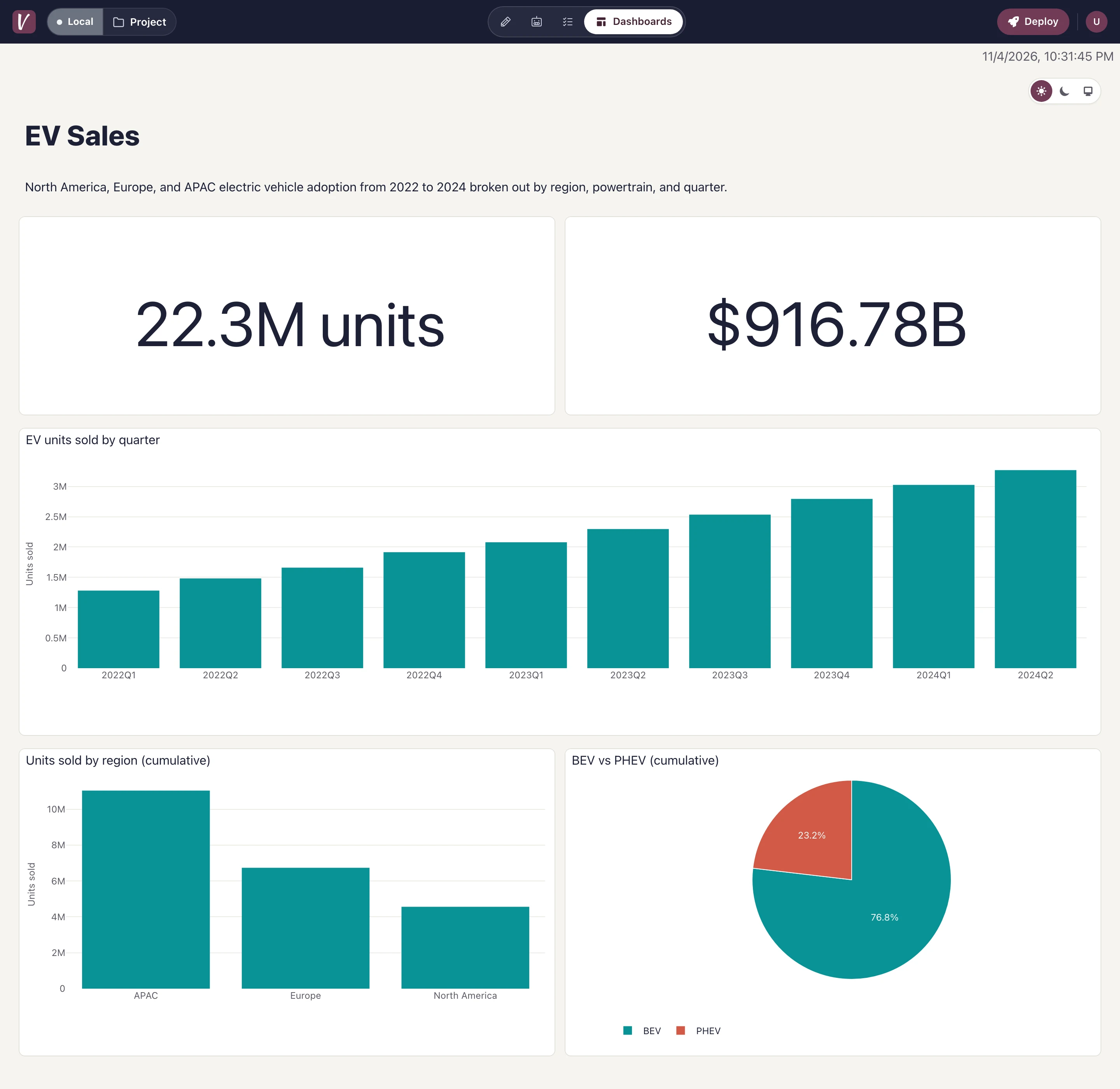 The ev-sales example (
visivo init --example ev-sales) served locally by Visivo 2.3.0.
Visit docs.visivo.io for the full reference on every option above, or sign up at app.visivo.io to deploy to Visivo Cloud.
Related reading: Visualizations as Code, BI as Code Scalable Systems, and Lightning-Fast Embedded Dashboards.
Customization should not mean fighting the tool. When the whole project is YAML in Git, changing a color, a query or a layout is an edit and a pull request, and the result is the same on every run.