
CEO & Co-founder of Visivo
How Visualizations as Code Simplify Analytics Workflows
Treat visualizations as code and get version control, reuse, and automation for your dashboards with Visivo's YAML-based approach.

Visualizations as code means a chart is a YAML file, not a sequence of clicks. That one change brings version control, reuse, and automation to work that used to be manual and easy to get wrong.
MIT research found that "Companies using data-driven strategies have 5-6% higher productivity," and that depends on analytics workflows that are systematic and repeatable. In Visivo, a declarative YAML project with SQL where you need it makes building a complex visualization as systematic as writing software.
The problem with building charts by hand
Traditional BI tools lock teams into repetitive manual work. One week with a sales dashboard:
Monday: Sarah builds a revenue trend chart in Power BI's drag-and-drop interface. She spends 20 minutes on colors, axis formatting, and tooltips. It looks great.
Tuesday: Mike needs a similar chart for product performance. He starts from scratch and tries to remember Sarah's settings. After 30 minutes his chart has different colors, different formatting, and a missing tooltip.
Wednesday: The team needs regional versions of both charts. Three analysts each build their own by hand, and each one differs a little in styling and logic.
Thursday: A stakeholder asks for a style change for brand consistency. The team updates every chart by hand, misses a few, and the inconsistency grows.
Friday: A new analyst joins. There is no record of the original requirements or styling decisions, so they spend hours reverse-engineering charts that already exist.
None of this scales. Every chart is a one-off that nobody can reproduce or maintain. VentureBeat reports that "87% of data science projects never make it to production," and manual processes that cannot be repeated are a large part of why.
What visualizations as code means
Visualizations as code means a chart is declared in configuration, not assembled in a GUI. Data sources, chart types, styling, interactions, and layout all live in YAML files under version control, where they can be reviewed, tested, and deployed like any other code.
It is the chart-level form of developer-first BI workflows and the basis for BI version control best practices.
Visivo splits a visualization into four parts:
- Models define the SQL, metrics, and dimensions: the semantic layer
- Insights map data to visual elements, with interactions like filter, split, and sort
- Charts combine Insights with layout and styling
- Dashboards arrange charts into pages
Each part can be reused on its own, which is where most of the value comes from.
The same chart, two ways
Traditional approach: click, configure, hope for consistency
1. Open BI tool interface
2. Click "Create New Chart"
3. Select data source from dropdown
4. Drag fields to axes
5. Configure chart type
6. Adjust colors one by one
7. Format axes manually
8. Set up tooltips
9. Save chart with generic name
10. Repeat for every similar chart
Visivo: define once, reference everywhere
name: example_project

# models/sales_data.visivo.yml
models:
  - name: monthly_sales
    sql: |
      SELECT
        DATE_TRUNC('month', sale_date) as month,
        SUM(amount) as total_sales,
        COUNT(*) as transaction_count,
        AVG(amount) as avg_transaction
      FROM sales
      WHERE sale_date >= CURRENT_DATE - INTERVAL 12 MONTH
      GROUP BY DATE_TRUNC('month', sale_date)
      ORDER BY month

# insights/sales_insights.visivo.yml
insights:
  - name: sales_trend
    props:
      type: scatter
      mode: lines+markers
      x: ?{ ${ref(monthly_sales).month} }
      y: ?{ ${ref(monthly_sales).total_sales} }
      name: "Monthly Sales"
      line:
        color: "#2E86C1"
        width: 3
        shape: spline
      marker:
        size: 8
        color: "#2E86C1"
      hovertemplate: |
        <b>%{fullData.name}</b><br>
        Month: %{x}<br>
        Sales: $%{y:,.0f}<br>
        <extra></extra>

# charts/sales_charts.visivo.yml
charts:
  - name: monthly_sales_trend
    insights:
      - ${ref(sales_trend)}
    layout:
      title:
        text: "Monthly Sales Trend"
        font:
          size: 24
          family: "Inter, sans-serif"
      xaxis:
        title:
          text: "Month"
          font:
            size: 14
        showgrid: true
        gridcolor: "#E8E8E8"
      yaxis:
        title:
          text: "Sales Revenue ($)"
          font:
            size: 14
        tickformat: "$,.0f"
        showgrid: true
        gridcolor: "#E8E8E8"
      plot_bgcolor: "#FFFFFF"
      paper_bgcolor: "#F8F9FA"
      height: 400
      margin:
        l: 80
        r: 40
        t: 80
        b: 60
Everything about the chart is now readable in one file. Anyone on the team can see how it was built, change it, or reference it from another chart.
Building reusable components
The biggest gain from visualizations as code is reuse. Instead of building each chart from scratch, the team builds up a set of Insights that every dashboard draws on.
A shared set of Insights
Many charts need the same data-to-visual mapping. In Visivo, each Insight is a named mapping that any chart can reference with ${ref(...)}:
name: example_project

# insights/reusable_insights.visivo.yml
insights:
  # A time series insight that any chart can reference
  - name: time_series_base
    props:
      type: scatter
      mode: lines+markers
      x: ?{ ${ref(time_series_data).date_column} }
      y: ?{ ${ref(time_series_data).value_column} }
      line:
        width: 2
        shape: spline
      marker:
        size: 6
      hovertemplate: |
        <b>%{fullData.name}</b><br>
        Date: %{x}<br>
        Value: %{y:,.0f}<br>
        <extra></extra>

  # More insights that follow the same pattern
  - name: revenue_over_time
    props:
      type: scatter
      mode: lines+markers
      x: ?{ ${ref(revenue_data).month} }
      y: ?{ ${ref(revenue_data).total_revenue} }
      line:
        color: "#27AE60"
        width: 3
        shape: spline
      marker:
        size: 8
        color: "#27AE60"

  - name: orders_over_time
    props:
      type: scatter
      mode: lines+markers
      x: ?{ ${ref(order_data).month} }
      y: ?{ ${ref(order_data).order_count} }
      line:
        color: "#E74C3C"
        width: 3
        shape: spline
      marker:
        size: 8
        color: "#E74C3C"

  # Multi-metric comparison insight
  - name: revenue_vs_orders
    props:
      type: scatter
      mode: lines
      x: ?{ ${ref(combined_metrics).month} }
      y: ?{ ${ref(combined_metrics).total_revenue} }
      yaxis: y
      line:
        color: "#27AE60"
        width: 3
One Insight for every region
Regional dashboards and product-specific reports look like they need a chart per region. They do not. One Insight with a split interaction draws a separate series for each region:
name: example_project

models:
  - name: regional_sales
    sql: |
      SELECT
        region,
        DATE_TRUNC('month', sale_date) as month,
        SUM(amount) as total_sales,
        COUNT(*) as order_count
      FROM sales
      WHERE sale_date >= CURRENT_DATE - INTERVAL 12 MONTH
      GROUP BY region, DATE_TRUNC('month', sale_date)

insights:
  - name: sales-by-region
    props:
      type: scatter
      mode: lines
      x: ?{ ${ref(regional_sales).month} }
      y: ?{ ${ref(regional_sales).total_sales} }
    interactions:
      - split: ?{ ${ref(regional_sales).region} }
      - sort: ?{ ${ref(regional_sales).month} ASC }

charts:
  - name: sales-by-region-chart
    insights:
      - ${ref(sales-by-region)}
To give each viewer one region at a time, add an input and a filter interaction, as the dashboard example below shows.
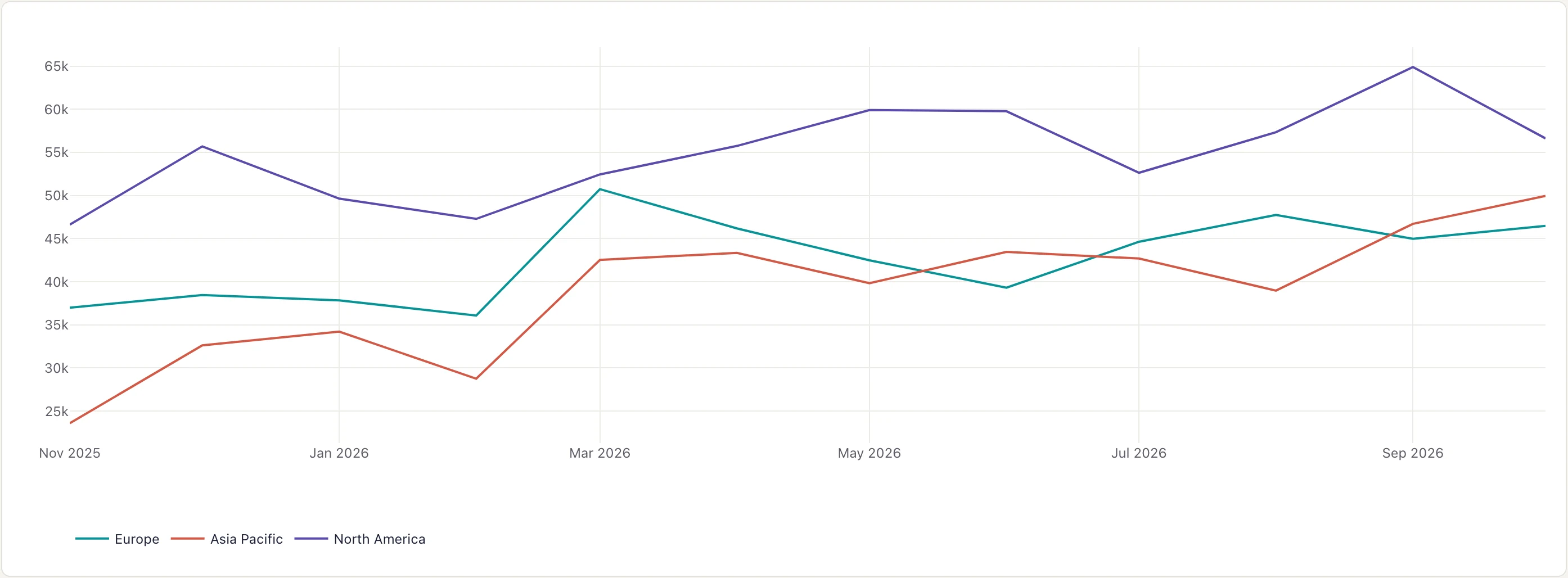 sales-by-region: a single Insight split by region.
Version control for visualizations
In a traditional BI tool, the moment someone edits a dashboard the previous version is gone. That is part of the Gartner finding that "Data quality issues cost organizations an average of $12.9 million annually": when a number goes wrong, nobody can trace the change that broke it.
With the project in Git, every change is recorded and reversible.
Tracking changes
Every edit to a chart or dashboard is a commit:
# See what changed in the sales dashboard
git log --oneline dashboards/sales.visivo.yml

# Output:
# a1b2c3d Update sales chart colors for brand compliance
# e4f5g6h Add quarterly targets line to sales trend
# h7i8j9k Fix revenue calculation to exclude refunds
# k0l1m2n Initial sales dashboard creation

# See the specific changes
git diff HEAD~1 dashboards/sales.visivo.yml

# Output shows exact YAML changes:
# - color: '#1f77b4'  # Old blue
# + color: '#2E86C1'  # New brand blue
Working in parallel
Two people can work on the same dashboard at the same time on separate branches, which is what makes it practical to track changes with pull requests:
# Sarah works on chart styling
git checkout -b feature/update-chart-styling
# Edit charts/sales.visivo.yml - update colors and fonts

# Mike works on data logic
git checkout -b feature/improve-data-model
# Edit models/sales.visivo.yml - add new metrics

# Both changes can be reviewed and merged independently
# No risk of overwriting each other's work
Rollback and recovery
When a chart breaks, revert to the last working version first and investigate second:
# Production dashboard shows wrong numbers
# Identify the problematic commit
git log --oneline project.visivo.yml

# Revert to the last known good version
git revert abc123f

# Deploy the fix immediately
visivo deploy -s production

# Investigate the issue without pressure
git diff abc123f abc123f~1
More complex patterns
Some visualizations are tedious to build by hand in a traditional BI tool. In YAML they are a few more lines. The same patterns come up in our posts on customizable embedded analytics and lightning-fast embedded dashboards.
Several Insights on one chart
A chart that compares actuals, targets, and last year is four Insights on one chart:
# Complex sales performance dashboard
models:
  - name: sales_metrics
    sql: |
      SELECT
        DATE_TRUNC('month', sale_date) as month,
        SUM(amount) as actual_sales,
        SUM(target_amount) as target_sales,
        SUM(CASE WHEN sale_date >= CURRENT_DATE - INTERVAL 1 YEAR
            THEN amount ELSE 0 END) as current_year_sales,
        SUM(CASE WHEN sale_date < CURRENT_DATE - INTERVAL 1 YEAR
            THEN amount ELSE 0 END) as previous_year_sales
      FROM sales s
      LEFT JOIN targets t ON DATE_TRUNC('month', s.sale_date) = t.month
      WHERE sale_date >= CURRENT_DATE - INTERVAL 2 YEAR
      GROUP BY DATE_TRUNC('month', sale_date)
      ORDER BY month

insights:
  # Actual sales line
  - name: actual-sales
    props:
      type: scatter
      mode: lines+markers
      x: ?{ ${ref(sales_metrics).month} }
      y: ?{ ${ref(sales_metrics).actual_sales} }
      line:
        color: "#27AE60"
        width: 3
      marker:
        size: 8
        color: "#27AE60"

  # Target sales line
  - name: target-sales
    props:
      type: scatter
      mode: lines
      x: ?{ ${ref(sales_metrics).month} }
      y: ?{ ${ref(sales_metrics).target_sales} }
      line:
        color: "#E74C3C"
        width: 2
        dash: "dash"

  # Year-over-year comparison
  - name: yoy-comparison
    props:
      type: scatter
      mode: lines
      x: ?{ ${ref(sales_metrics).month} }
      y: ?{ ${ref(sales_metrics).current_year_sales} }
      line:
        color: "#3498DB"
        width: 2
      showlegend: true

  - name: yoy-previous
    props:
      type: scatter
      mode: lines
      x: ?{ ${ref(sales_metrics).month} }
      y: ?{ ${ref(sales_metrics).previous_year_sales} }
      line:
        color: "#95A5A6"
        width: 2
        dash: "dot"

charts:
  - name: sales-performance-analysis
    insights:
      - ${ref(actual-sales)}
      - ${ref(target-sales)}
      - ${ref(yoy-comparison)}
      - ${ref(yoy-previous)}
    layout:
      title:
        text: "Sales Performance Analysis"
        font:
          size: 24
      xaxis:
        title:
          text: "Month"
        type: date
      yaxis:
        title:
          text: "Sales ($)"
        tickformat: "$,.0f"
      hovermode: x unified
      showlegend: true
      legend:
        orientation: h
        yanchor: bottom
        y: 1.02
        xanchor: right
        x: 1
Interactive dashboards with inputs
An input can drive several charts at once. Here one multi-select filters both the trend and the category breakdown:
# Interactive regional analysis filtered by an input
inputs:
  - name: region-input
    type: multi-select
    options:
      - North America
      - Europe
      - Asia Pacific
    display:
      type: dropdown
      default:
        values: all

models:
  - name: filtered_sales
    sql: |
      SELECT
        r.region_name,
        DATE_TRUNC('month', s.sale_date) as month,
        p.product_category,
        SUM(s.amount) as sales,
        COUNT(*) as transactions,
        AVG(s.amount) as avg_transaction
      FROM sales s
      JOIN regions r ON s.region_id = r.id
      JOIN products p ON s.product_id = p.id
      WHERE s.sale_date >= CURRENT_DATE - INTERVAL 12 MONTH
      GROUP BY r.region_name, DATE_TRUNC('month', s.sale_date), p.product_category
      ORDER BY month, region_name, product_category

insights:
  - name: regional-sales-trend
    props:
      type: scatter
      mode: lines+markers
      x: ?{ ${ref(filtered_sales).month} }
      y: ?{ SUM(${ref(filtered_sales).sales}) }
      line:
        width: 2
      marker:
        size: 6
    interactions:
      # Break the trend out into one line per region
      - split: ?{ ${ref(filtered_sales).region_name} }
      - sort: ?{ ${ref(filtered_sales).month} ASC }
      # Keep only the selected regions (all regions are selected by default)
      - filter: ?{ ${ref(filtered_sales).region_name} IN (${ref(region-input).values}) }

  - name: category-breakdown
    props:
      type: bar
      x: ?{ ${ref(filtered_sales).product_category} }
      y: ?{ SUM(${ref(filtered_sales).sales}) }
      marker:
        color: "#3498DB"
      text: ?{ SUM(${ref(filtered_sales).sales}) }
      texttemplate: "$%{text:,.0f}"
      textposition: outside
    interactions:
      - filter: ?{ ${ref(filtered_sales).region_name} IN (${ref(region-input).values}) }

charts:
  - name: regional-sales-trend-chart
    insights:
      - ${ref(regional-sales-trend)}

  - name: category-breakdown-chart
    insights:
      - ${ref(category-breakdown)}

dashboards:
  - name: Regional Sales Analysis
    rows:
      # Input controls
      - height: compact
        items:
          - width: 1
            input: ${ref(region-input)}

      # Main trend chart
      - height: large
        items:
          - width: 3
            chart: ${ref(regional-sales-trend-chart)}

      # Category breakdown
      - height: medium
        items:
          - width: 3
            chart: ${ref(category-breakdown-chart)}
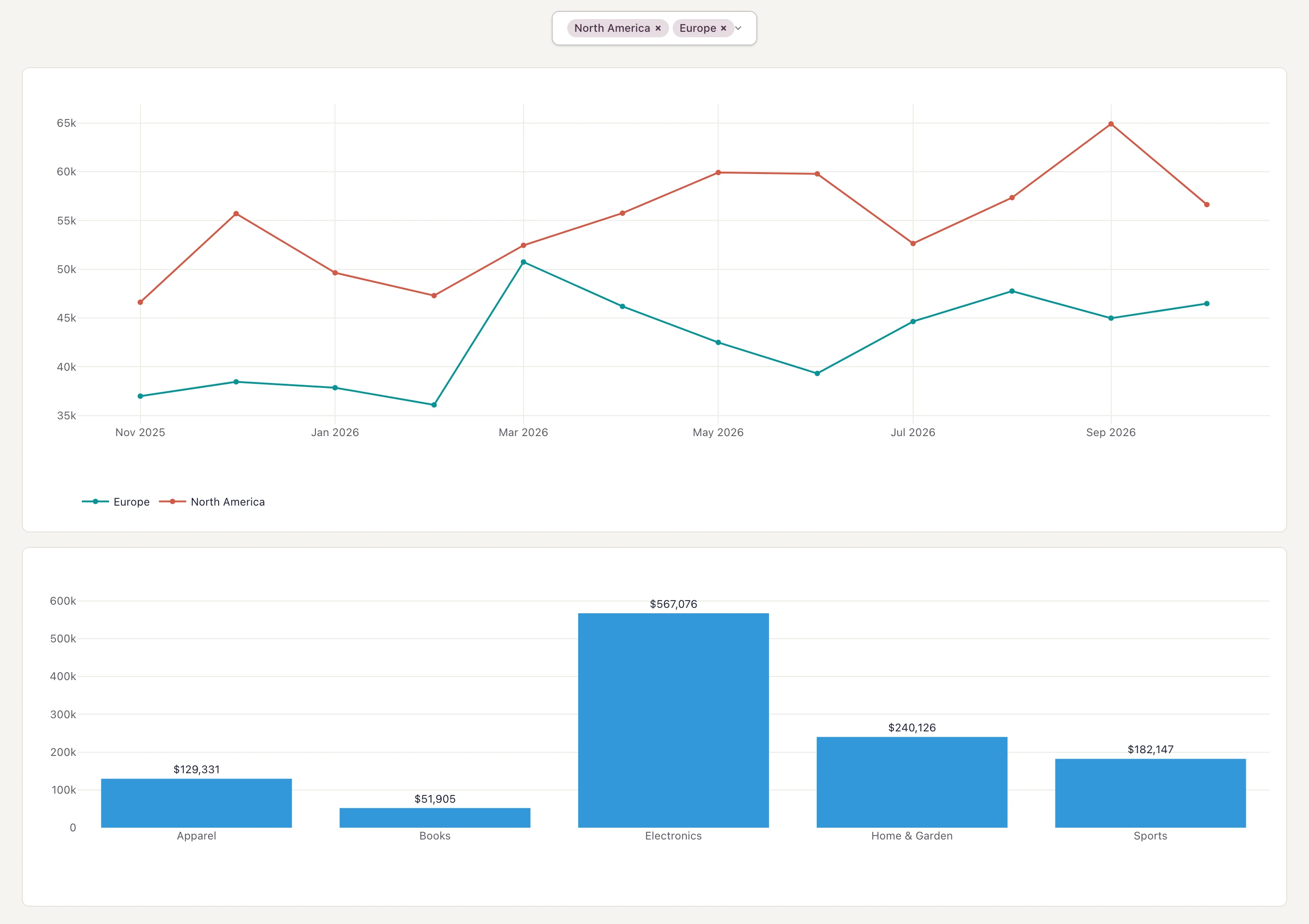 Regional Sales Analysis with region-input set to North America and Europe.
Testing visualizations
Because a chart is code, it can be tested, which is the whole idea behind test before dashboard deployment. A Visivo test is a Python expression that asserts on the data behind an Insight, with numpy available, and visivo test runs them all:
# tests/visualization_tests.visivo.yml
tests:
  - name: sales-has-a-year-of-history
    assertions:
      - ">{ len( ${ref(actual-sales).props.x} ) >= 12 }"

  - name: sales-never-negative
    assertions:
      - ">{ numpy.min( ${ref(actual-sales).props.y} ) >= 0 }"

  - name: actuals-and-targets-cover-the-same-months
    assertions:
      - ">{ len( ${ref(actual-sales).props.x} ) == len( ${ref(target-sales).props.x} ) }"
Performance and scalability
Visualizations as code also make load easier to reason about:
Predictable resource usage
Every query a dashboard will run is declared in the project, so you can see what it asks of the database before it runs:
name: example_project

models:
  - name: example_model
    sql: SELECT * FROM example_table

insights:
  - name: example_insight
    props:
      type: scatter
      x: ?{ ${ref(example_model).date_column} }
      y: ?{ ${ref(example_model).value_column} }

charts:
  - name: high_volume_sales_analysis
    insights:
      - ${ref(example_insight)}
What changes with a code-based approach
Forrester research found that between 60% and 73% of enterprise data goes unused for analytics. Reuse and shared standards are how a code-based approach raises that. A style change is one edit to the project theme instead of one edit per chart, a bad change rolls back with git revert, and the Git history documents every change.
Getting started
Phase 1: foundation (week 1-2)
Set up the basics:
- Install the Visivo CLI
- Initialize a project:
visivo servein an empty directory creates one - Convert existing charts: start with the 2-3 that matter most
- Put it in Git: version control every configuration file
# Initialize Visivo project
pip install visivo  # or: curl -fsSL https://visivo.sh | bash
visivo serve
# In an empty directory, serve starts a new project; follow the setup flow in your browser

# Set up version control
git init
git add .
git commit -m "Initial Visivo project setup"

# Create first code-based visualization
# Edit your project at project.visivo.yml

# View changes update live at localhost:8000 with
visivo serve
Phase 2: shared standards (week 3-4)
Agree on standards:
- Set shared styling: define a project theme and reusable Insights
- Name things consistently: one convention for models, Insights, and charts
- Write the standards down: guidelines the team can follow
- Train the team: hands-on time with the YAML
Phase 3: advanced patterns (week 5-8)
Build the harder patterns:
- Multi-Insight charts: comparative visualizations like the one above
- Interactive dashboards: inputs that filter and split charts
- Tests: automated assertions on the data behind each chart
- Performance: caching and optimization strategies
Phase 4: scale (week 9-12)
Spread the approach across the organization:
- Cross-team adoption: expand to other analytics teams
- Less duplication: replace copied charts with split and filtered Insights
- Performance monitoring: track rendering times and resource usage
- Retrospectives: regular reviews of what to improve next
Conclusion
Visualizations as code turns dashboard building from a craft into an engineering discipline. With a YAML project in Visivo, a team can build consistent, maintainable visualizations and keep them that way as the project grows.
The benefits compound:
- The time spent learning the YAML pays back on the first reused chart
- Shared Insights and themes make the next dashboard faster than the last
- Version control ends the guesswork about who changed what
- Automated tests catch errors before a stakeholder sees them
- Branches and PRs let several people build at once
Every chart becomes an asset the team can reuse, and every dashboard becomes a system someone can maintain.
For related reading, see YAML vs GUI BI configuration, BI-as-code scalable systems, and dashboard version control collaboration.
The easiest way to find out whether this fits your team is to write the next chart in YAML instead of clicking it together. /get-started takes you from install to a running dashboard in a few minutes, and the examples gallery has projects you can read and run.